Monday, December 8, 2008

Two Exciting Typing Games

Straight away, I'd like to thank Pukman@WinK, indubitable master of quickposts, for pointing out two exciting typing games in recent posts on his blog (Great typing games, and Class of December 5th, both 2008.12.05). One game offers intensive practice typing letters and numbers, and the other[,] similarly intensive practice typing words.
  1. Alpha Attack - letters and numbers
  2. QWERTY Warriors - words
Hopefully you will transcend the kill-the-enemy prompts for both games, yet appreciate both the time pressure and accuracy requirements while you play. If the killing metaphor bears heavily on your conscience, you may wish to try some of the less hostile games at Only Typing Games.

In general, I suggest reading the instructions and starting out at easy levels, after you re-familiarize yourselves with locations of letter and number keys. You also may wish to mute the soundtracks on the games. I find muting the sound helpful in concentrating attention on the typing targets, and on the feel of touch typing. [Here is an example of the feedback from a quick go at one of the games:]


Neither of the games Pukman pointed out allows much time for hunt-and-peck keyboarding. Nevertheless, I hope you enjoy the challenges.
[198 words]

Friday, November 28, 2008

Label Actions: Multiple Posts

This post shows how to search for a keyword from your Blogger Dashboard, and then how to apply a label to all of the posts you find. You can follow the steps to apply a new(-er) label to old(-er) posts, as well as to correct the spelling or capitalization of existing labels.

The keyword in this example is a label that I had used only once; it was on a recent post. I noticed the label in the sidebar earlier today, "paragraphs (1)," and decided to use it on more posts.

Here's how:
  • To find all of the posts in which you use a keyword, type it into the search field under the Edit Posts tab in your dashboard, click on the search button, and check for results.
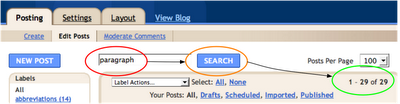
In this case, I found 29 posts containing the keyword, "paragraph" (singular). I was almost ready for label actions, which appear when you open the drop-down menu with a click on the small black triangle.

Possible actions include applying existing labels, such as "abbreviations" (above), adding new labels, and removing old ones.
  • The next step is to select the posts to which you want to apply label actions.
Since I was fairly certain that I wanted to add a particular label to all of the posts found in my Edit Posts search (Dashboard [illustrated above]), I selected them all. Another way you can select posts is to tick the boxes to the left of individual posts in your dashboard list.
  • After selecting posts (all or some), you scroll down the list of Label Actions and existing labels to find the action (and label) that you want to apply.
I chose to apply (add) the label, "paragraphs" (plural) to all of the posts that I'd found.

The results appeared in a caption above the search field.
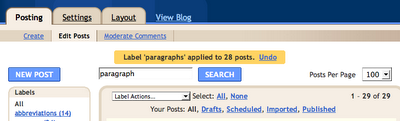
Note: Blogger added labels only to 28 of the 29 posts [that] I'd found in a search of all posts (drafts, scheduled, imported, and published). The 29th post that I'd found already had the label I was applying.
  • If you want to change existing labels, the process is similar:
    • Click on the label that you want to change in the Labels sidebar (Dashboard: Edit Posts).
      • This works like the search of all posts (Dashboard: Edit Posts: Search), but looks only for existing labels on them.
    • Select ALL of the posts with the label that you want to change.
    • Scroll through Label Actions, and apply a different or new label.
  • If you want to correct your *spellling or *CaPiTaLiZaTiOn of existing labels:
    • Add correctly spelled and capitalized labels first.
    • Then remove incorrectly spelled or capitalized labels.
      • BEWARE: If you remove inaccurate labels before you apply accurate ones, it may be[-come] extremely difficult to find all of the posts again, especially if you have labeled them with words or phrases such as "essays" or "essay prep." that don't appear in the posts themselves.
[489 words {+ 3, 2008.12.11}]

Did You Know? 3.0: Broadband for the Brain

Are you in ... [a] broadband backwash [bayou], or [a beach in] Bermuda?


Where would you rather be? Get a load of the new stat's in this video, and find out!

Blogged with the Flock Browser
Revised in Blogger
[40 words]

Wednesday, November 19, 2008

How to Post via Mail [from your cell phone]


Use a Mail-to-Blogger Address!

///// [end of photo + text message from cell phone: 6 words (not including title)]

A number of students have reported having difficulty making many blog posts each week, partly because they haven't had access to their blogs from computers at home (no computers, or no internet connections). However, this shouldn't be a problem for anyone who has a cell phone (I believe I was the last person in the class to get one;-).

It is a simple matter to set your blog to receive posts via mail. You can find directions here:
First, at a computer with internet access, you create a mail-in address in your blog Dashboard Settings: Email section from your username and a word you keep secret. While you are in the Mail-to-Blogger Address settings, you should decide whether you want your blog to save posts you send via mail as drafts posts, or to publish them immediately. I chose drafts, because I usually expect to get back on a computer again within a day or two (at most).

I learned how to do this in under five minutes, and had sent a picture to my blog from my phone within 10 more minutes--including time to add the mail-in address to my cell phone book, and to key in a short message, "Use a Mail-to-Blogger Address!" (above). It appeared among my blog posts as a draft:


Sending a cover photo and place-holder title (mail subject), for example: BR 2-10: Common Errors, would be a great way to get book reviews started, especially when you are away from computers, because you can always draft the text of your book reviews on paper to type in as soon as you get back to a computer. So blog on via mail!

[309 words]

Tuesday, November 18, 2008

Essay Map: Composition Tool for Short Essays

I've written this short piece in Essay Map to re-explore its advantages and rediscover the kinds of output available at the end of the process. Basically, there are three main advantages of preparing an essay this way. However, output options are few.

Visualization
Visualization is a powerful tool for realizing your objectives. With desired outcomes in mind, paths to achievement may clear. Essay Map helps you see the end from the beginning, and back again.

Organization
The purpose of this mapping tool is to show beginning writers ways of organizing and supporting their ideas. Although thinking is rarely if ever linear, conventional writing is. Organizing and supporting main points help readers understand writers' thoughts.

Facilitation
Paths on the map are easy to follow and retrace. Though Supporting Details frames lack topic specific headings for main ideas, an Essay Map enables you to review your introduction, main ideas, and supporting points with a few clicks as you are writing.

Essay Map makes it easy to collect and organize content for essays. The writing paths are easy to follow for step-by-step development of your main ideas. Though the displays are narrow, you can retrace your steps anytime, and review your entire map before you finish. To capture output, you need to print from the "Review my map" frame (and retype), or copy and paste text from individual input frames. Nevertheless, this is a cool tool for composing short five-paragraph essays!

[242 words]

Blogged with the Flock Browser
Revised in Blogger
Related Posts Plugin for WordPress, Blogger...